T2125 Expense Tracking: How to Track Expenses Without a Spreadsheet
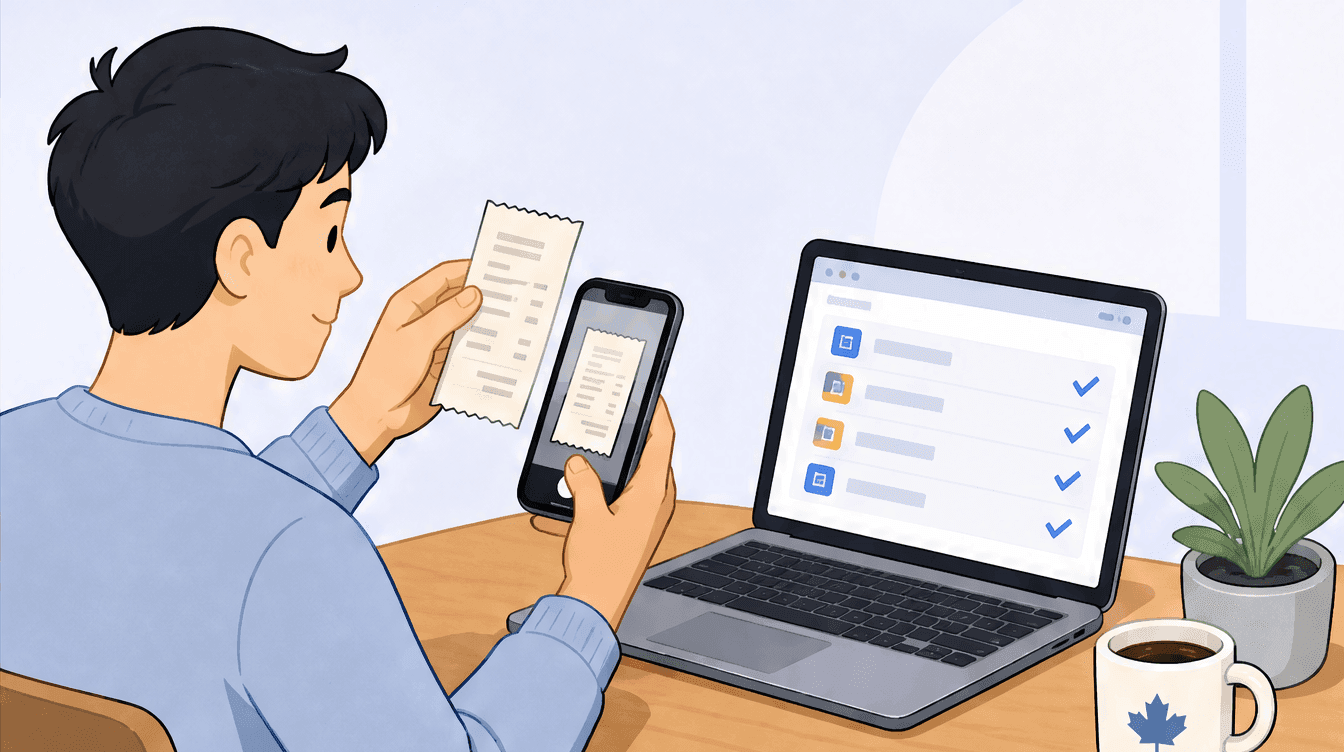
The simplest way to track T2125 expenses is to capture each receipt the day you get it and sort it to its CRA line number as you go, instead of rebuilding a year in a spreadsheet at filing time. The T2125 only asks for a total per category, so year-round categorization turns tax season into a copy-and-paste job.
If you are self-employed in Canada, the T2125 is the form that turns your year of work into a tax return. Every spring it produces the same scene: a shoebox of faded receipts, a half-finished spreadsheet, and the slow realization that you cannot remember what the $43 charge at the office-supply store was for. T2125 expense tracking does not have to feel like that. The problem is rarely the form. Most of us only start tracking expenses the week before filing, when the receipts have already gone cold.
This guide is for the sole proprietor and freelancer filing a T1 with a T2125, not the incorporated business. We will cover what the form asks for, the CRA expense line numbers you need, why the spreadsheet falls apart by January, and a simpler way to capture and categorize expenses to the right line as you go. This is general information to help you build a system, not personalized tax advice. For your specific situation, talk to a tax professional.
What the T2125 actually asks for (and what you DON'T submit)
The T2125, Statement of Business or Professional Activities, is where you report your business income and expenses. Part 5 is the expenses section, and it asks for one thing per category: a total. You enter how much you spent on advertising, how much on supplies, how much on travel, and so on, each against its own CRA line number.
Here is the part that surprises people. You do not send your receipts with the form. The T2125 reports totals, not documents. But "you do not submit them" is not the same as "you do not need them." If the CRA reviews your return, you have to produce the receipt behind every number you reported. So the real job is not filling in the form once a year. It is keeping a clean, organized record all year so the totals are accurate and each one is backed by proof.
You can see the current form on the CRA's T2125 page.
The T2125 expense categories you need to track (Part 5, line by line)
The CRA fixes the expense lines on the T2125, which is good news: your categories are defined for you. Track to these lines all year and filing becomes a matter of copying totals across. The full list of CRA business expense categories lives on the CRA expenses section page; these are the T2125 line numbers a typical freelancer touches.
The lines most freelancers use
- Line 8521, Advertising: website, ads, business cards, sponsored posts.
- Line 8690, Insurance: commercial insurance for the business (not your personal life insurance).
- Line 8710, Interest and bank charges: business loan interest, business account fees.
- Line 8810, Office expenses: small office items like pens, stamps, and stationery.
- Line 8811, Office stationery and supplies: supplies consumed in the work itself.
- Line 8860, Professional fees (includes legal and accounting fees): your bookkeeper, your accountant, legal advice. Yes, the fee you pay a professional to handle this is itself a tracked expense.
- Line 8910, Rent: rent for business premises (a studio or office, not your home, which has its own line below).
- Line 8960, Repairs and maintenance: fixing business equipment or premises.
- Line 9200, Travel expenses: flights, hotels, and transportation for business trips.
- Line 9220, Utilities: the CRA groups telephone and utilities here. Many self-employed Canadians can deduct the business portion of phone and internet, though the CRA notes you cannot deduct the basic monthly rate of a home telephone line.
The two tricky ones: meals (8523, 50%) and motor vehicle (9281)
Two lines cause more audit questions than the rest combined, and they are the two hardest to track from memory.
Line 8523, Meals and entertainment is only partly deductible. The CRA limits the claim to 50% of the lesser of what you spent or an amount reasonable in the circumstances. So that $80 client lunch becomes a $40 claim. Keep the full receipt on file, with a note about who you met and why, because the deduction has to be tied to earning business income.
Line 9281, Motor vehicle expenses is where a receipt scanner hits an honest limit. You can generally claim the business-use portion of your vehicle costs (gas, insurance, repairs, and so on), but a logbook determines that portion: business kilometres driven to earn income divided by total kilometres for the year. A scanner captures the gas receipt. It cannot know how far you drove. Something still has to record the kilometres, and no app removes the act of noticing a business trip happened; any tool that claims otherwise is overpromising. What a tool can do is take the record off your hands once you have it. scan-ai keeps a mileage log next to your receipts: enter the date, purpose, and distance, and it applies the CRA per-kilometre rate for that year, drops to the lower rate after 5,000 km, uses the higher territory rates when the trip was in the Northwest Territories, Nunavut, or Yukon, and puts the total on line 9281 in your tax workbook with one audit row per trip. The CRA publishes the current rules and rates, so confirm the method and figures for your tax year.
Meals and vehicle are exactly the areas the CRA scrutinizes, so this is a good place to check your approach with a tax professional.
Business-use-of-home (line 9945) and what counts
If you work from home, line 9945, Business-use-of-home expenses lets many self-employed Canadians deduct a portion of home costs like heat, electricity, and a share of rent or property costs. The portion is based on the area you use for work relative to your whole home. One important rule: business-use-of-home expenses cannot create or increase a business loss; they are capped at your net income before claiming them. The unused part carries forward. Because home-office claims interact with your overall income, confirm the calculation with a professional if your numbers are close to that limit.
Why the spreadsheet breaks down by January
A spreadsheet is fine in theory. The problem is human. A spreadsheet only works if you sit down and type every transaction into it, and almost nobody does that the day the expense happens. You tell yourself you will catch up on Sunday. Then the receipt fades in your wallet, the card statement does not say what the charge was for, and by March you are reverse-engineering a year of spending from memory.
The spreadsheet does not fail because it is a bad tool. It fails because it puts the work at the wrong moment. It asks you to do data entry later, in a batch, for the whole year at once, the single least appealing task in self-employment. A good T2125 system flips that: it captures the expense as it happens, when the receipt is in your hand and you still know what it was.
A simpler T2125 expense tracking system: capture, categorize, keep
The fix is three small habits, not one big spreadsheet session. Capture, categorize, keep.
Step 1 - capture every receipt the moment you get it
The instant a receipt lands, photograph it. At a restaurant, at the gas pump, at checkout. With scan-ai you snap a photo and the receipt is in your records before you have left the counter. Email receipts work the same way: forward the confirmation to your scan-ai email address and it is captured without a screenshot. The goal is zero loose paper and nothing left for "later."
Step 2 - categorize to the right T2125 line
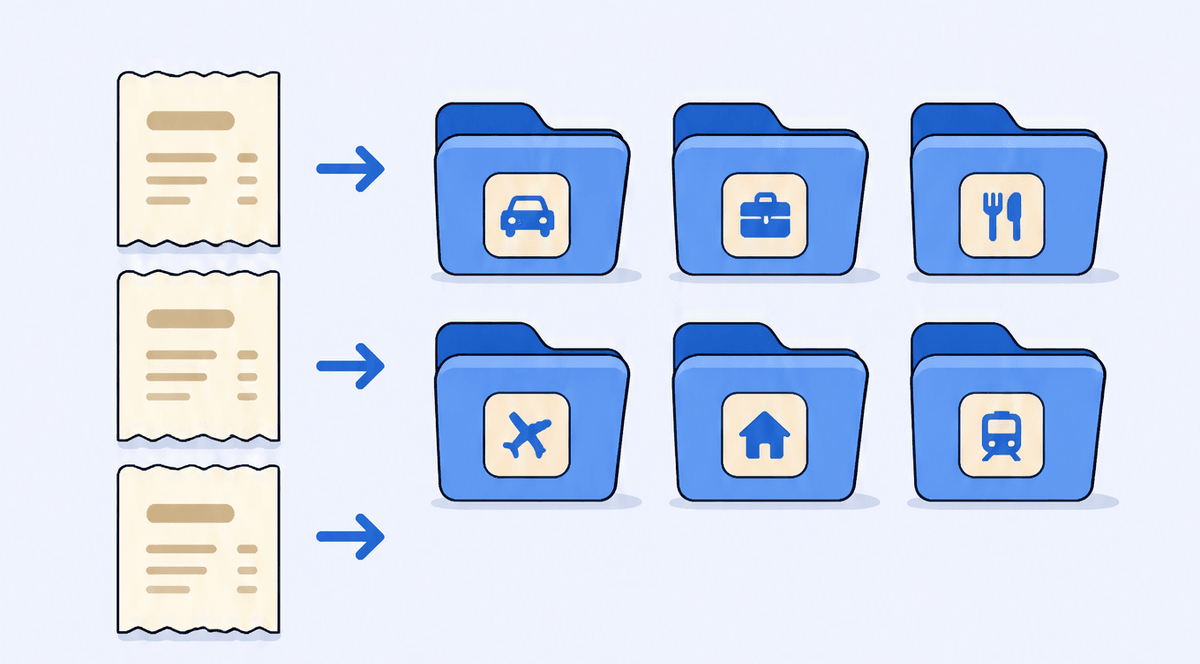
Capturing is only half of it. A photo you cannot total at year-end is just a tidier shoebox. scan-ai reads every line item on the receipt, including the tax, and assigns each expense to a Canadian T2125 category so your spending lands against the right CRA line as you go. You review and correct as needed; the categories match the form. When filing season arrives, your totals are already grouped the way Part 5 wants.
Step 3 - keep the record (six-year rule) without a shoebox
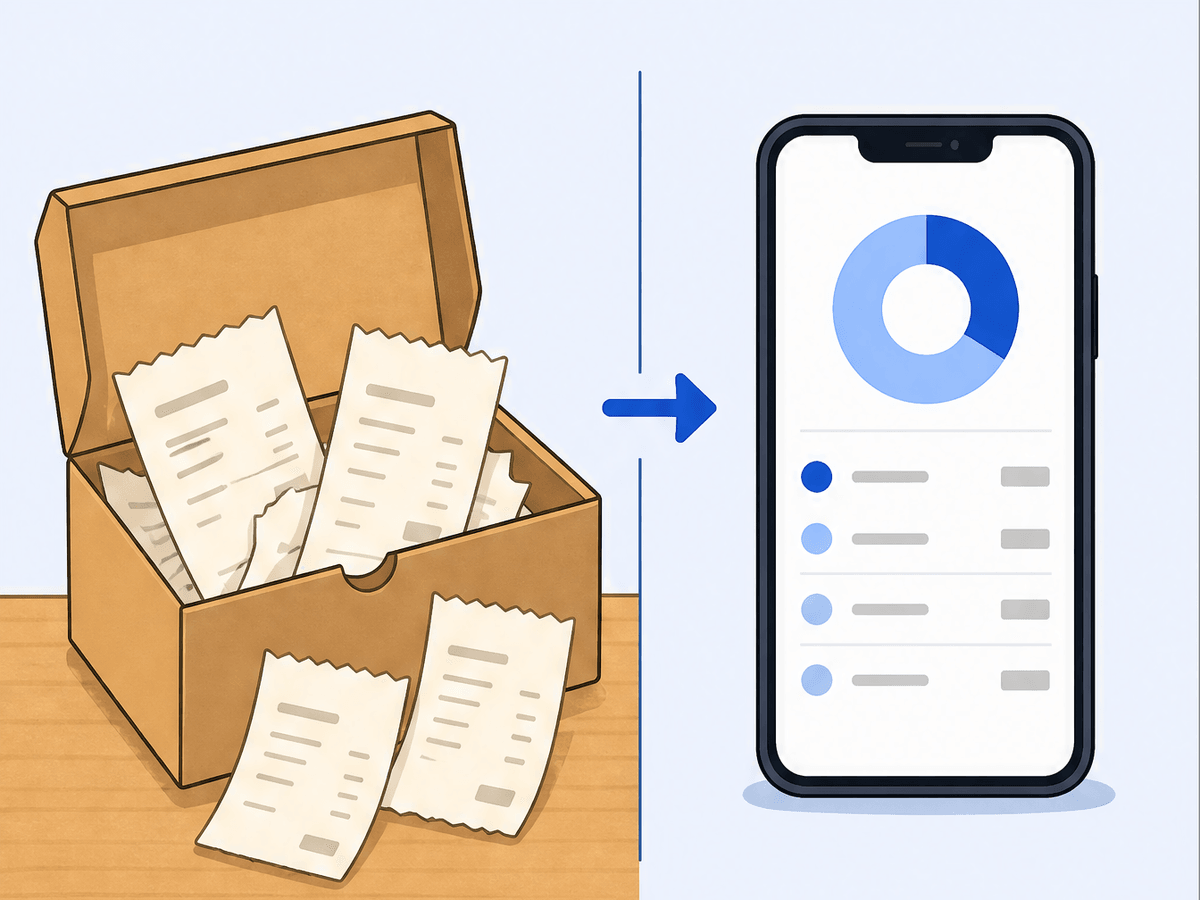
Because you do not submit receipts but must be able to produce them, every captured receipt becomes your audit defense. Digital copies stored in one place beat a paper box that fades and floods. With your receipts captured and categorized, you can also ask scan-ai about your own spending: how much you spent on meals this quarter, what is in your travel total, where a category is trending. That keeps the record useful all year, not just at filing.
How long do you have to keep T2125 receipts?
The CRA requires you to keep your records and supporting documents for six years from the end of the last tax year they relate to. For individuals, the tax year is the calendar year. So receipts for your 2025 business activity must be kept until the end of 2031.
You may have heard "seven years." That is a cautious convention some bookkeepers prefer for extra safety, not the CRA rule. The rule is six. To destroy records before the six years are up, you have to ask the CRA for permission. The official details are on the CRA keeping records page.
Are digital receipts and phone photos OK with the CRA?
Yes. The CRA accepts electronic records, including photos of paper receipts, as long as they are legible, complete, unaltered, and properly backed up. A clear photo of a receipt is a valid record. The CRA's guidance on electronic records is in its keeping records publication.
The practical catch is the "complete and backed up" part. A blurry photo, or one lost when your phone dies, will not help you. We dug into the details in our guide on whether digital receipts are valid for CRA audits. The short version: capture the whole receipt clearly and store it somewhere durable, not just your camera roll.
Spreadsheet vs app vs receipt scanner: which is right for you
There is no single right answer, but the honest trade-offs look like this:
- Spreadsheet: free and flexible. Fine if you have a handful of expenses a month and the discipline to enter each one immediately. It breaks down the moment you fall behind, and it does nothing to store the actual receipt image.
- General bookkeeping app: strong for invoicing and reporting, often more than a solo freelancer needs, and many require you to enter or import each expense. Note that scan-ai does not sync to your bank or auto-import transactions; it works from the receipts you capture.
- Receipt scanner: built for the capture-and-categorize problem. You photograph the receipt, it reads the line items, and the expense is sorted to a T2125 category. The trade-off is that a scanner is not a full accounting suite and, as covered above, cannot notice your trips for you even when it gives you somewhere to record them.
For a sole proprietor whose biggest pain is loose receipts and year-end catch-up, the scanner-first approach removes the exact failure point the spreadsheet creates. If your situation is more complex, your accountant may still want the totals in their own software, and a clean categorized export of your receipts eases that handoff.
Get ready before the June 15 deadline
Self-employed Canadians get a later filing deadline. If you or your spouse carried on a business, your return is generally due June 15. One catch worth repeating: any balance owing is still due by April 30, so a later filing date does not mean a later payment date. Plan for both.
The best preparation is not a frantic weekend in June. It is the small habit of capturing each receipt as it happens, so that by deadline your T2125 totals are already sitting there, sorted by line. To see what your categories are likely to look like, our overview of Canadian self-employed tax deductions and the T2125 guide to every CRA business expense category, line by line are good companions to this piece.
FAQ
What expenses can I claim on a T2125? Reasonable expenses incurred to earn business income, grouped by CRA line: advertising (8521), meals and entertainment at 50% (8523), insurance (8690), office expenses and supplies (8810/8811), professional fees (8860), rent (8910), travel (9200), utilities and telephone (9220), motor vehicle (9281), and business-use-of-home (9945), among others. The expense must relate to the business, and you keep proof of each one.
Do I need to submit receipts with my T2125? No. You do not send receipts with your T2125 or tax return. You report totals by CRA line number, but you must keep every supporting receipt and record in case the CRA asks to see them. Digital copies are accepted.
How long do I have to keep receipts for the CRA? Six years from the end of the last tax year they relate to. For individuals, that is six years after the calendar year. Destroying them earlier requires CRA permission.
Are digital receipts and photos of receipts accepted by the CRA? Yes, when they are legible, complete, unaltered, and backed up. A clear photo of a receipt is a valid record.
Can I use a spreadsheet to track T2125 expenses? You can, and the CRA does not require any specific tool. The challenge is keeping it current and storing the receipt images somewhere durable, which is where most spreadsheets fall down by January.
How do I track meal and vehicle expenses for the T2125? Keep the full receipt for every meal (note who and why) and claim 50%. For vehicles, keep both your fuel and repair receipts and a mileage logbook recording business kilometres versus total kilometres. A scanner captures the receipts; scan-ai's mileage log gives the kilometres a home and does the rate maths, but recording each trip is still on you.
What is the filing deadline for the T2125? For self-employed individuals, the return is generally due June 15, but any balance owing is still due April 30.
How do I categorize receipts for the T2125 automatically? A receipt scanner like scan-ai reads each receipt and assigns the expense to a Canadian T2125 category, so your spending is grouped by CRA line as you go instead of sorted by hand at year-end.
Tax rules carry real stakes, and the details of your situation matter. Treat everything here as general information and confirm anything material with a tax professional or your bookkeeper.
Stop tracking T2125 expenses in a spreadsheet you will abandon by January. Capture each receipt the moment you get it, let scan-ai read the line items and sort them to the right CRA category, and walk into filing season with your totals already done. Start free at scan-ai.ca: 20 receipt scans, no credit card.
How scan-ai compares
For one specific job, turning a pile of receipts into tax-ready, categorized records you can ask questions about, scan-ai is the cheapest option here and the one built around the Canadian T2125 and US Schedule C tax lines. It also reads every line on a receipt and gives each line its own tax category, on every plan, where the mass-market tools here (Expensify, QuickBooks, Wave, Shoeboxed) capture only the header total. Dext extracts lines too, but meters that feature and sells to firms. scan-ai starts free with 20 scans and no credit card, and tops out at $10/month for unlimited receipts.
| Tool | Entry price | Free tier | Line-item capture | T2125 / Schedule C tax lines | Ask-your-receipts chat | Built for |
|---|---|---|---|---|---|---|
| scan-ai | Free, then $3/mo (Starter) or $10/mo (Pro), USD | Yes. 20 receipt scans + 5 AI chats, no credit card | Yes. Reads every line on the receipt and gives each its own tax category, on every plan | Yes. Maps each receipt to US Schedule C and Canada T2125 lines | Yes. Ask your own receipts anything in plain language | One freelancer or self-employed person (US + Canada) |
| Expensify | $5 / member / month (Collect plan); Control tier costs more, USD | Mostly paid per member; limited free use | No. SmartScan captures the header: merchant, date, and amount | Not built around Schedule C / T2125 lines (US expense management) | Concierge automates expense tasks; not receipt Q&A | Teams and corporate-card programs |
| Dext (Receipt Bank) | Quote-based; practice plans priced per client, 10-client minimum | Free trial only | Yes, but metered. Line Item Extraction is automatic but spends per-document credits on firm plans | Captures and categorizes, then publishes to accounting software; not a sole-proprietor T2125 map | Not stated | Accounting and bookkeeping firms |
| Shoeboxed | $9 to $179 / month (Starter to Paper Plus), USD | No free plan (30-day money-back guarantee) | No. Captures header fields per receipt: vendor, total, date, and tax | Auto-tags expenses by tax category; T2125 / Schedule C line mapping not stated | Not stated | Receipt digitizing, including mail-in paper scanning |
| QuickBooks Online (Canada) | ~$22 CAD / month regular for EasyStart, the entry plan; intro discounts vary | Free trial only | No. Receipt capture pulls date, vendor, and total; splitting into lines is manual | Full accounting that organizes for tax time, not a per-receipt T2125 line map | Intuit Assist AI rolling out; not focused on receipt Q&A | Full accounting, invoicing, and payroll |
| Wave | Free; Pro $19 USD / $25 CAD per month. Receipt capture is an $11/mo add-on on the free plan | Yes, but receipt capture is a paid add-on or Pro-only | No. OCR fills date, amount, and category; no per-line breakdown | Bookkeeping categories; not built around T2125 / Schedule C lines | Not stated | Free accounting and invoicing |
The bigger suites do things scan-ai does not: bank-feed import, invoicing, and payroll. On mileage, scan-ai logs trips manually and applies the CRA and IRS standard rates, carrying the total onto T2125 line 9281 or the Schedule C vehicle line, but it does not detect trips automatically by GPS the way a dedicated tracker does. scan-ai stays focused on reading receipts, categorizing them to the right tax line, and answering questions about them, priced for one freelancer rather than a team. If you want a full accounting system, pair scan-ai with one or pick a suite. If you mainly need your receipts read, categorized, and searchable, scan-ai does that for less.
Sources, verified June 2026 (prices change; check each vendor)
- scan-ai: scan-ai pricing
- Expensify: Expensify: $5 Collect plan announcement; Expensify pricing; Expensify SmartScan: pulls merchant, date, amount
- Dext (Receipt Bank): Dext pricing (business); Dext plans for accountants and bookkeepers; Dext Line Item Extraction (credit-metered)
- Shoeboxed: Shoeboxed pricing; Shoeboxed: data captured per receipt
- QuickBooks Online (Canada): QuickBooks Online Canada plans and pricing; QuickBooks Online EasyStart (Canada); QuickBooks: receipt capture pulls date, vendor, total
- Wave: Wave pricing; Wave: scan and upload receipts (date, amount, category)